

The short answer: use 32GB for HD and light 4K editing, 64GB for a serious 4K workstation, and 96GB only when large timelines, multicam, After Effects, or background applications measurably push past 64GB. Capacity comes before extreme RAM speed.
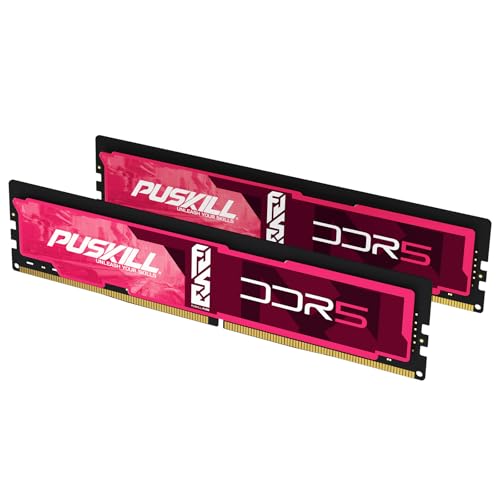
The live desktop DDR5 picks above show one value option per tier. You can also compare 32GB DDR5, 64GB DDR5, and 96GB DDR5 directly.
Premiere capacity picker
| Editing workload | Capacity | Practical reason |
|---|---|---|
| HD, short projects, basic graphics | 32GB | Strong new-system floor |
| Regular 4K, multicam, Adobe multitasking | 64GB | Balanced professional tier |
| Large 4K/8K, After Effects, heavy background work | 96GB | Headroom when 64GB is measured as a limit |
Adobe's current Premiere requirements list 16GB for HD media and 32GB or more for 4K and higher. Those are requirement targets, not a promise that every complex 4K workflow fits comfortably in 32GB. Premiere, After Effects, Media Encoder, Photoshop, plugins, browsers, and the operating system all compete for memory.
Capacity by editing workflow
Use this as a purchasing range, then confirm it with a representative project:
| Workflow | Start here | Move up when |
|---|---|---|
| 1080p H.264/H.265, short timelines | 32GB | Multicam, large graphics, or several Adobe apps run together |
| Single-stream 4K with proxies | 32GB | Peak committed memory repeatedly approaches 28GB |
| Native 4K, multicam, long-form projects | 64GB | After Effects, large stills, or background encodes push the system beyond about 55GB |
| Premiere + After Effects Dynamic Link | 64GB | Complex compositions and caching cause paging or application purges |
| Heavy 6K/8K, large Productions, many concurrent apps | 96GB | Real measured demand exceeds the mid-80GB range |
Codec and project structure matter. A heavily compressed camera codec can stress CPU/GPU decoding while a high-bitrate intermediate can stress storage. Neither problem is automatically fixed by buying more RAM. Capacity is justified when the operating system is paging, Adobe applications are purging useful cache, or concurrent applications cannot remain resident.
Run a five-minute capacity test
- 1Restart the workstation so the measurement begins from a normal baseline.
- 2Open the largest representative Premiere project and every application used during a normal session.
- 3Scrub a difficult section, switch multicam angles, render a preview, and start an export.
- 4In Windows Task Manager, watch Memory and the committed-memory figure; on macOS, watch Memory Pressure and swap use in Activity Monitor.
- 5Record the highest sustained value rather than one brief spike.
For a new build, add roughly 20% headroom to the observed committed-memory peak and choose the next standard matched-kit capacity. A 43GB measured peak becomes about 52GB after headroom, making 64GB appropriate. A 67GB peak becomes about 80GB, making 96GB appropriate.
What a RAM upgrade will and will not fix
| Symptom | RAM may help | Check first |
|---|---|---|
| Heavy paging and slow application switching | Yes | Confirm memory pressure during the slowdown |
| Dropped frames from unsupported codec decode | Sometimes | Hardware decode support, proxies, GPU, and CPU |
| Slow media-cache reads | Rarely | Cache location and SSD performance |
| Export limited by GPU effects | Rarely | GPU utilization and VRAM |
| Crashes after enabling XMP/EXPO | More capacity will not help | Return memory to stable settings and test it |
Worked example: 4K multicam + After Effects Dynamic Link
Example measurement from a representative session (replace with your own peak):
| Step | Observed committed memory |
|---|---|
| Premiere 4K multicam timeline + browser references | 41GB |
| Same project with After Effects Dynamic Link composition open | 58GB |
| Add ~20% headroom for a new build | ~70GB |
Buy 64GB if peaks stay near the mid-50GB range without Dynamic Link. Buy 96GB when sustained peaks with After Effects and concurrent Adobe apps land in the mid-60GB to mid-80GB range after headroom.
Do not size from the “4K” label alone. Codec, multicam angle count, Dynamic Link compositions, effects, and concurrent apps can matter as much as resolution. Proxies reduce decode pressure but do not eliminate every memory-heavy part of the workflow.
For a broader matrix, use How Much RAM Do I Need?. If the workstation also runs local models, read Best RAM for Local AI. Sibling creator guides: DaVinci Resolve · After Effects.
Speed, timings, and platform fit
After choosing capacity, buy the stable sweet spot for the processor and motherboard:
- AMD AM5: DDR5-6000 EXPO is the practical target; see Best RAM for AM5.
- Intel Core Ultra 9 285K: DDR5-6400 XMP is the official-support target; see the 285K guide.
- Older DDR4 workstation: match the board rather than buying DDR5 that cannot fit.
A modest speed difference rarely compensates for insufficient capacity. Prefer one matched two-stick kit. Filling four slots can reduce stable DDR5 speed, so select the final capacity deliberately and check Four-Stick DDR5 Stability before planning a second pair.
Desktop versus laptop RAM
The live picks on this page are desktop DDR5 UDIMMs. A laptop normally uses SO-DIMMs or soldered memory and cannot accept them. Laptop editors should use Laptop RAM Prices and the Laptop RAM Upgrade Guide, then verify upgradeability in the service manual.
Buying and validation checklist
- 1Measure peak committed memory with a real project.
- 2Select 32GB, 64GB, or 96GB with room for concurrent applications.
- 3Confirm DDR generation, desktop/laptop form factor, and motherboard maximum.
- 4Buy a matched kit and check the motherboard QVL.
- 5Enable XMP or EXPO only after updating BIOS.
- 6Run a full memory test before depending on the workstation for client exports.
- 7Compare current price per GB with the price-per-GB calculator.