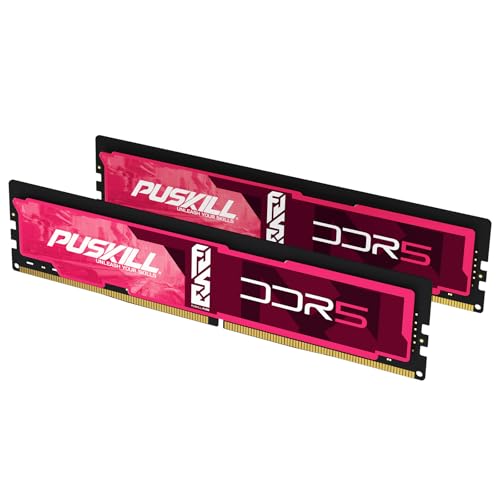


For After Effects, 64GB is the practical sweet spot for regular professional work. A 32GB system can handle learning, HD, and lighter 4K compositions; 96GB makes sense for complex high-resolution projects, long previews, and heavy Adobe multitasking that already pushes past 64GB.
The live picks above prioritize desktop DDR5 capacity tiers. Verify your exact motherboard generation, supported density, and memory form factor before buying.
Quick capacity decision
| After Effects workload | Recommended RAM | Buyer profile |
|---|---|---|
| Learning, HD, lighter 4K | 32GB | Entry desktop |
| Regular 4K, Multi-Frame Rendering, Adobe apps | 64GB | Best professional default |
| Heavy 4K+, complex comps, several apps | 96GB | Measured high-memory workflow |
Browse current 32GB DDR5, 64GB DDR5, and 96GB DDR5 kits.
Adobe requirement vs workstation recommendation
Adobe lists 16GB for HD media and 32GB or more for 4K and higher in the current After Effects requirements. That is the official baseline. It does not mean every 4K composition, plugin stack, preview length, or Multi-Frame Rendering workload has identical needs.
Our 64GB recommendation is a workflow choice, not an Adobe minimum: it gives After Effects and other applications more room before memory pressure forces shorter previews or disk activity.
Source: Adobe After Effects system requirements.
Why After Effects uses more RAM
After Effects stores rendered frames for previews and can use multiple CPU cores to render frames concurrently. Larger frames, higher bit depth, complex effects, and Multi-Frame Rendering increase the amount of active data. Premiere, Photoshop, Media Encoder, and browser tabs then compete for the same system memory.
More RAM is helpful only when the workflow can use it. Measure a representative composition:
- 1Open the normal Adobe applications.
- 2Preview the most demanding section.
- 3Watch total committed memory, not only the After Effects process.
- 4Check whether the system approaches its limit or pages heavily to disk.
If 32GB is already saturated, 64GB is a clear upgrade. If 64GB remains comfortable, 96GB may sit idle.
RAM preview and disk cache are different
After Effects uses memory for active frames and application work, while disk cache stores reusable frame data on storage. A larger or faster cache drive can improve reuse, but Adobe states that disk cache does not solve inadequate RAM for holding or rendering one frame.
| Bottleneck | Typical sign | Better fix |
|---|---|---|
| Insufficient RAM | Short previews, heavy paging, allocation errors | Add capacity or reduce concurrent apps |
| Slow disk cache | Cached frames reload slowly | Use a fast SSD and review cache settings |
| CPU limit | RAM remains available while rendering is compute-bound | Faster CPU or optimize effects |
| GPU or VRAM limit | GPU errors or effects exceed VRAM | Adjust effects, resolution, or GPU |
Source: Adobe memory and storage guidance.
Multi-Frame Rendering and Adobe memory settings
Multi-Frame Rendering can render several frames concurrently, but the benefit depends on CPU, GPU, RAM, effects, plugins, and the project. More capacity gives concurrent work more room; it does not guarantee linear render scaling.
In Memory & CPU preferences:
- 1Review RAM reserved for other applications.
- 2Leave enough memory for the operating system and applications used beside After Effects.
- 3Open Memory Usage Details to inspect allocation.
- 4Test the same composition after a change.
- 5Avoid assigning nearly all system memory to Adobe applications.
Adobe notes that the reserved-RAM preference applies whether Multi-Frame Rendering is enabled or not. See Adobe Multi-Frame Rendering guidance and Adobe performance guidance.
32GB: workable entry tier
Choose 32GB for learning, motion graphics with modest assets, HD work, and lighter 4K compositions. It also fits a budget build where more money should first go to the CPU, GPU, or fast cache storage.
Use a matched 2x16GB kit. Avoid buying one 16GB stick with the hope of mixing a second module later; matched kits reduce profile and timing uncertainty.
64GB: best professional default
Choose 64GB for regular 4K work, Multi-Frame Rendering, longer previews, Dynamic Link, or using After Effects beside Premiere and Photoshop. A 2x32GB kit is easier on a desktop memory controller than four 16GB DIMMs.
If you move between Premiere and After Effects, read Best RAM for Adobe Premiere as well. The shared Adobe workflow often matters more than either application in isolation.
96GB: high-capacity two-stick option
A 2x48GB kit provides more headroom without populating four slots. It suits compositions with large source assets, demanding plugins, 6K/8K work, several creative applications, or local AI tools running beside Adobe. Buy it from evidence, not because After Effects can theoretically use more RAM.
Speed, timings, and profiles
Capacity is the first decision. Then choose a stable, matched kit near the platform sweet spot:
- AMD AM5: DDR5-6000 EXPO is a practical target when QVL-listed.
- Modern Intel: choose a stable XMP kit supported by the board and CPU generation.
- Existing DDR4 workstation: a capacity upgrade may deliver more value than replacing the platform.
XMP and EXPO are memory-overclocking profiles. Update BIOS and run a memory stability test after enabling either profile. See How to Enable XMP and EXPO.
Pre-purchase checklist
- 1Confirm desktop UDIMM or laptop SODIMM.
- 2Confirm DDR4 or DDR5.
- 3Check maximum capacity and per-module density.
- 4Search the motherboard QVL by exact part number.
- 5Prefer two matched modules.
- 6Validate stability and a real composition before the return window closes.
Bottom line
Buy 64GB (2x32GB) for a professional After Effects workstation. Use 32GB for lighter work and 96GB when a monitored workflow proves 64GB is limiting previews or multitasking.